
Use your TV as a monitor, for movies, Hulu, Web Browsing, games or presentations
CONNECT YOUR COMPUTER (PC/MAC) TO YOUR HDTV OR STANDARD DEF TV
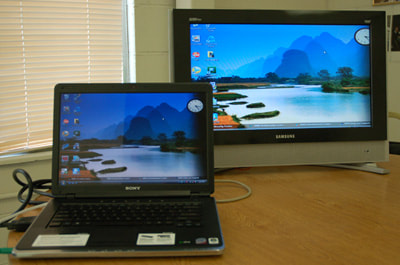
It has never been quite as inexpensive or easy to connect your TV screen to your Computer to enjoy the benefits that SIZE gives. With that said, it's also never been quite as complicated a topic! So many different sorts of connections are in use now on computers (and now other "computer like" gadgets) that it can be a bit mind boggling for the non-tech savvy individual, or for the non-video-related-tech-savvy individual even.
A) HDMI to HDMI: Congradulations you win... Just buy an HDMI cable dummy. What are you even reading this for? Go buy it! If you have any Audio problems, post snarky comments on Facebook about your Computer manufacturer. Then skip to the audio cable section.
HDMI Cables
B) Mini DisplayPort to HDMI: Might be all you need is a MiniDisplayPort to HDMI adapter. Some earlier Macs with this connection did not put out audio over it. You can look this up on Apples site or on lowendmac.com. If your Mac does not put out audio, for Jobbs sake don't tell anyone! Jump down to the audio cable section so you can surreptitiously connect the audio without anyone knowing how old your mac is!
C) VGA to HDMI
VGA to HDMI requires some complicated conversion from analog to digital and usually RGB to Y-Pr-Pb video formats. Converters in recent years have come way down in price, and the latest converters are compatible with more of the new Widescreen VGA resolutions, which the older ones couldn't handle, and will help you to get a better picture with fewer scaling artifacts. The rule to remember is the lower the resolution going into the converter, the blurrier the picture coming out will be. No scaler can do a perfect job of creating pixels that just don't exist.
VGA to HDMI converters
A) HDMI to HDMI: Congradulations you win... Just buy an HDMI cable dummy. What are you even reading this for? Go buy it! If you have any Audio problems, post snarky comments on Facebook about your Computer manufacturer. Then skip to the audio cable section.
HDMI Cables
B) Mini DisplayPort to HDMI: Might be all you need is a MiniDisplayPort to HDMI adapter. Some earlier Macs with this connection did not put out audio over it. You can look this up on Apples site or on lowendmac.com. If your Mac does not put out audio, for Jobbs sake don't tell anyone! Jump down to the audio cable section so you can surreptitiously connect the audio without anyone knowing how old your mac is!
C) VGA to HDMI
VGA to HDMI requires some complicated conversion from analog to digital and usually RGB to Y-Pr-Pb video formats. Converters in recent years have come way down in price, and the latest converters are compatible with more of the new Widescreen VGA resolutions, which the older ones couldn't handle, and will help you to get a better picture with fewer scaling artifacts. The rule to remember is the lower the resolution going into the converter, the blurrier the picture coming out will be. No scaler can do a perfect job of creating pixels that just don't exist.
VGA to HDMI converters
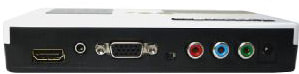
D) USB to HDMI
Are you using a laptop with no Video output? Maybe you just want to add the display as a 2nd monitor and keep your other monitor as is. USB 2.0 can give you pretty decent results. USB 3.0 devices will be coming soon and should give even higher resolutions and video frame rates.
usb to hdmi converter
USB to HDMI, DVI and VGA Converters
Are you using a laptop with no Video output? Maybe you just want to add the display as a 2nd monitor and keep your other monitor as is. USB 2.0 can give you pretty decent results. USB 3.0 devices will be coming soon and should give even higher resolutions and video frame rates.
usb to hdmi converter
USB to HDMI, DVI and VGA Converters
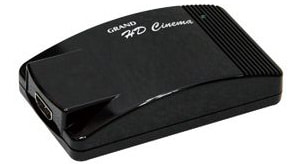
E) DVI to HDMI Connections:
When going from DVI to HDMI from a computer to an HDTV it is necessary to make sure that you give the HDTV a signal it likes. You need to know how to set your video output to specific resolutions and refresh rates in order to do this correctly. Sending some weird PC/Mac resolution like 1680x1050@60Hz will usually result in no picture. If you can output a standard HDTV signal, (720p [1280x720@60Hz], 1080i [1920x1080@29.9/30Hz] , or maybe 1080p [1920x1080@60Hz]) then the connection should work. If you have trouble, let us know. If you have a video output like the Intel Graphics accelerator then you probably don't have a suitable output, which will mean you need a Video Scaler/Processor
Sometimes you want a simple converter that also will combine Audio into the HDMI signal.
Convert DVI and Analog or Digital Audio to HDMI
F) VGA to HDTV Component Video Connections:
There are two types of VGA to Component Video converters to choose from.
1) Transcoders just re-encode from RGB to Y-Pr-Pb. What this means is, the resolution that goes in, comes back out, just "re-encoded" to Component Video.
So you get: 480p -> 480p, 720p -> 720p, 1080i -> 1080i, etc. The biggest problem usually is HDTV's are not happy with most computer monitor signals. Make sure your Video Card can output a good HDTV signal (720p [1280x720@60Hz], 1080i [Is usually changed to 540p, which most HDTV's will accept as if it were 1080i, most video cards will balk if you try and get them to output 1080i: 1920x1080@29.9/30Hz] , or maybe 1080p [1920x1080@60Hz]) otherwise you are going to have to use a program like "Powerstrip" for PC's or DisplayConfigX for Macs. If not sure, please ask.
2) Converters/Scalers accept various resolutions in and can output selectable video output formats.
So you can have inputs and outputs like these: 800x600->1080i, 1280x1024->720p, etc. Check specs for exactly what you need. Your best bet for a good result quality wise and "picture fitting the screen" wise is to keep the input resolution as close as you can to the output resolution.
Products and more Info: VGA to Component Video Converters, Transcoders and Scalers
CONNECT YOUR COMPUTER (PC/MAC) TO YOUR STANDARD DEF TV
There are two different signals to be considered when connecting your computer to your TV. There is the video signal and the audio signal.
VIDEO:
The video signal can be a bit tricky if you don't have a video card with a "TV friendly" video output. To get video output you will need to use a converter of some kind, depending on what type of video monitor connection your computer has. The long running standard video output connector for PC's and for awhile, even Macs was the "VGA" connector. It's also often called "D-Sub", "DB15" or "HD15". It's an analog signal format variety of RGB/HV. "Thrilling" you might say sarcastically, but it really is kind of thrilling if you like your converters cheap and easy to find... You just need a typical "VGA to video" converter box.
Like this:
When going from DVI to HDMI from a computer to an HDTV it is necessary to make sure that you give the HDTV a signal it likes. You need to know how to set your video output to specific resolutions and refresh rates in order to do this correctly. Sending some weird PC/Mac resolution like 1680x1050@60Hz will usually result in no picture. If you can output a standard HDTV signal, (720p [1280x720@60Hz], 1080i [1920x1080@29.9/30Hz] , or maybe 1080p [1920x1080@60Hz]) then the connection should work. If you have trouble, let us know. If you have a video output like the Intel Graphics accelerator then you probably don't have a suitable output, which will mean you need a Video Scaler/Processor
Sometimes you want a simple converter that also will combine Audio into the HDMI signal.
Convert DVI and Analog or Digital Audio to HDMI
F) VGA to HDTV Component Video Connections:
There are two types of VGA to Component Video converters to choose from.
1) Transcoders just re-encode from RGB to Y-Pr-Pb. What this means is, the resolution that goes in, comes back out, just "re-encoded" to Component Video.
So you get: 480p -> 480p, 720p -> 720p, 1080i -> 1080i, etc. The biggest problem usually is HDTV's are not happy with most computer monitor signals. Make sure your Video Card can output a good HDTV signal (720p [1280x720@60Hz], 1080i [Is usually changed to 540p, which most HDTV's will accept as if it were 1080i, most video cards will balk if you try and get them to output 1080i: 1920x1080@29.9/30Hz] , or maybe 1080p [1920x1080@60Hz]) otherwise you are going to have to use a program like "Powerstrip" for PC's or DisplayConfigX for Macs. If not sure, please ask.
2) Converters/Scalers accept various resolutions in and can output selectable video output formats.
So you can have inputs and outputs like these: 800x600->1080i, 1280x1024->720p, etc. Check specs for exactly what you need. Your best bet for a good result quality wise and "picture fitting the screen" wise is to keep the input resolution as close as you can to the output resolution.
Products and more Info: VGA to Component Video Converters, Transcoders and Scalers
CONNECT YOUR COMPUTER (PC/MAC) TO YOUR STANDARD DEF TV
There are two different signals to be considered when connecting your computer to your TV. There is the video signal and the audio signal.
VIDEO:
The video signal can be a bit tricky if you don't have a video card with a "TV friendly" video output. To get video output you will need to use a converter of some kind, depending on what type of video monitor connection your computer has. The long running standard video output connector for PC's and for awhile, even Macs was the "VGA" connector. It's also often called "D-Sub", "DB15" or "HD15". It's an analog signal format variety of RGB/HV. "Thrilling" you might say sarcastically, but it really is kind of thrilling if you like your converters cheap and easy to find... You just need a typical "VGA to video" converter box.
Like this:
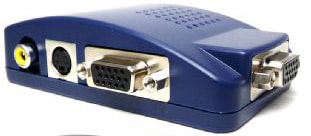
PC to TV converter
It converts your VGA (RGB/HV) to Composite video. Composite video is the connection you see in abundance on all the old equipment. It usually uses a single yellow color coded RCA connector. It has a video signal only, and it can be NTSC (American) , PAL (European) or SECAM (French weirdness). It is NOT High Definition, it is "Standard Definition" and try as you might you cannot make it into a High Definition signal. It can look pretty darn good with a really good signal and a really good converter as long as you don't blow it up too big. Enjoy it for what it is.
See our VGA to Video Converters
______________________________________________
Want to go Wireless?
Wireless PC to TV converters
______________________________________________
DON'T FORGET AUDIO!
CONNECTING THE STEREO AUDIO SIGNAL
The audio signal will be taken from your audio "line out" connector on the back of your computer, or if there is none, then the "headphone out" or "speaker output" will usually work just as well. Almost all of these audio outputs use a connector called a "3.5mm stereo mini phone plug" which is "standard" although some more proffesionally oriented sound cards have "RCA" jacks. If you don't know what yours has, then it is almost certainly a mini phone plug, because if you had a fancy sound card, you'd probably know it! So, to connect the computers output to the TV, stereo system or surround sound reciever input, you use either a long 3.5mm to dual RCA cable or a 3.5mm to dual Rca jack adapter, together with a standard dual RCA jack stereo cable. The dual RCA jacks go to the audio input of your TV or Home Theater system. Make sure it's an input and not an output. Easy!
Here is all you usually need:
It converts your VGA (RGB/HV) to Composite video. Composite video is the connection you see in abundance on all the old equipment. It usually uses a single yellow color coded RCA connector. It has a video signal only, and it can be NTSC (American) , PAL (European) or SECAM (French weirdness). It is NOT High Definition, it is "Standard Definition" and try as you might you cannot make it into a High Definition signal. It can look pretty darn good with a really good signal and a really good converter as long as you don't blow it up too big. Enjoy it for what it is.
See our VGA to Video Converters
______________________________________________
Want to go Wireless?
Wireless PC to TV converters
______________________________________________
DON'T FORGET AUDIO!
CONNECTING THE STEREO AUDIO SIGNAL
The audio signal will be taken from your audio "line out" connector on the back of your computer, or if there is none, then the "headphone out" or "speaker output" will usually work just as well. Almost all of these audio outputs use a connector called a "3.5mm stereo mini phone plug" which is "standard" although some more proffesionally oriented sound cards have "RCA" jacks. If you don't know what yours has, then it is almost certainly a mini phone plug, because if you had a fancy sound card, you'd probably know it! So, to connect the computers output to the TV, stereo system or surround sound reciever input, you use either a long 3.5mm to dual RCA cable or a 3.5mm to dual Rca jack adapter, together with a standard dual RCA jack stereo cable. The dual RCA jacks go to the audio input of your TV or Home Theater system. Make sure it's an input and not an output. Easy!
Here is all you usually need:
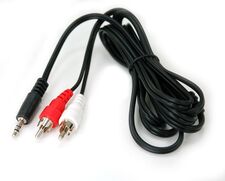
3.5mm stereo mini phone plug to dual RCA jack stereo cable
Some Computers and sound cards actually support Digital Optical Audio using a special 3.5mm Connector that doubles as a Stereo Speaker/headphone output. It looks like a 3.5mm mini plug connector, works like a 3.5mm mini plug, but additionally outputs a digital optical 5.1 signal for surround sound. To use this you'll need a mini toslink to Toslink Cable.
Mini Toslink to Toslink Optical Cables
Another common way to provide Digital Audio out of Sound Cards or laptops is to use the 3.5mm Speaker/Headphone output again, but this time for Coax Digital Audio.
RCA to 3.5mm S/PDIF Cables
Some Computers and sound cards actually support Digital Optical Audio using a special 3.5mm Connector that doubles as a Stereo Speaker/headphone output. It looks like a 3.5mm mini plug connector, works like a 3.5mm mini plug, but additionally outputs a digital optical 5.1 signal for surround sound. To use this you'll need a mini toslink to Toslink Cable.
Mini Toslink to Toslink Optical Cables
Another common way to provide Digital Audio out of Sound Cards or laptops is to use the 3.5mm Speaker/Headphone output again, but this time for Coax Digital Audio.
RCA to 3.5mm S/PDIF Cables